How to Fix Crawl Budget Waste: A Complete Guide for SEO Teams
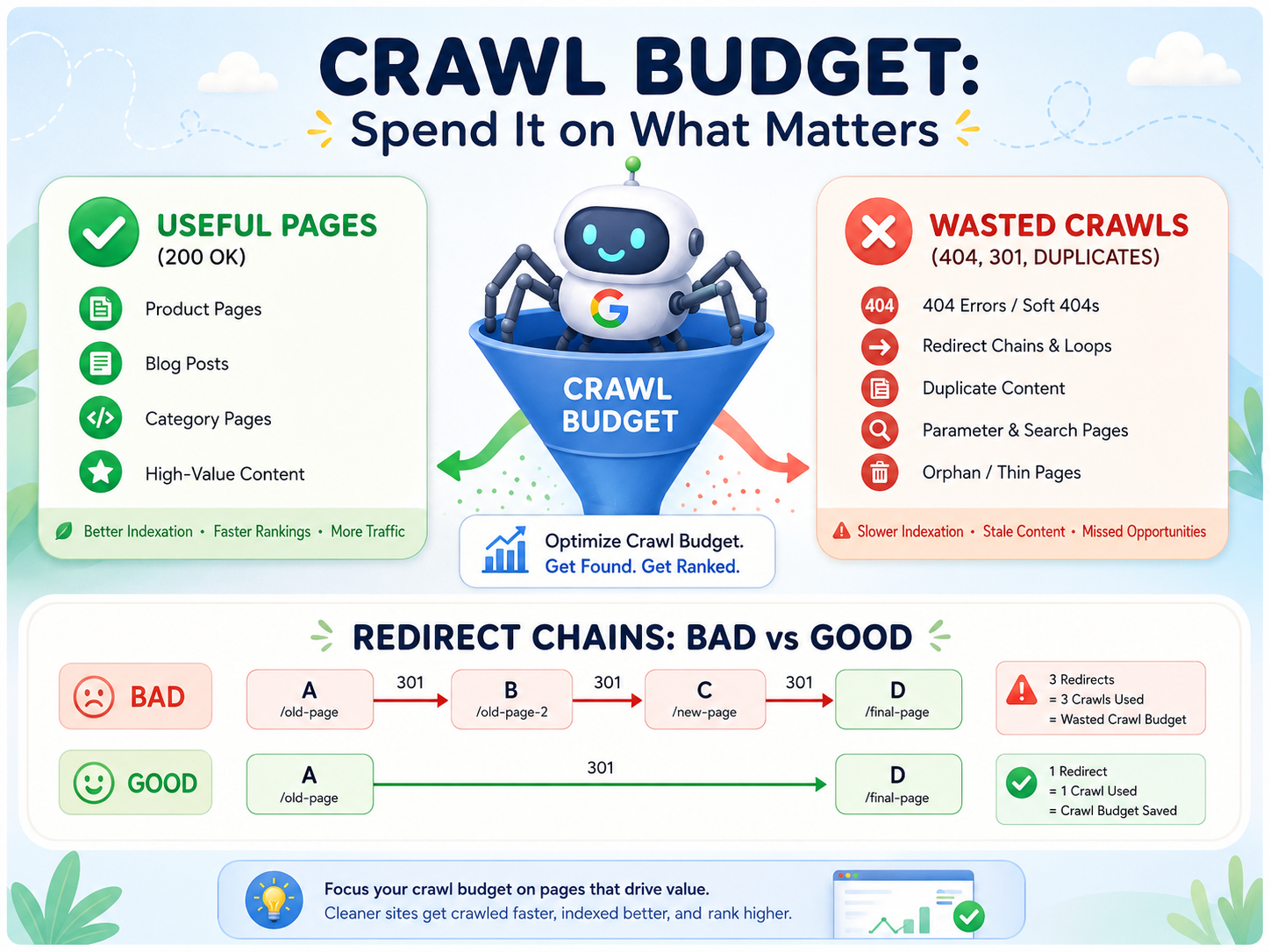
Table of Contents
- What Is Crawl Budget?
- How to Tell If Crawl Budget Is a Problem for You
- The 7 Biggest Crawl Budget Killers
- 1. Soft 404 Pages
- 2. Redirect Chains and Loops
- 3. Duplicate Content Without Canonical Tags
- 4. Orphan Pages
- 5. Bloated XML Sitemaps
- 6. Faceted Navigation and Parameter Explosion
- 7. Internal Search Result Pages
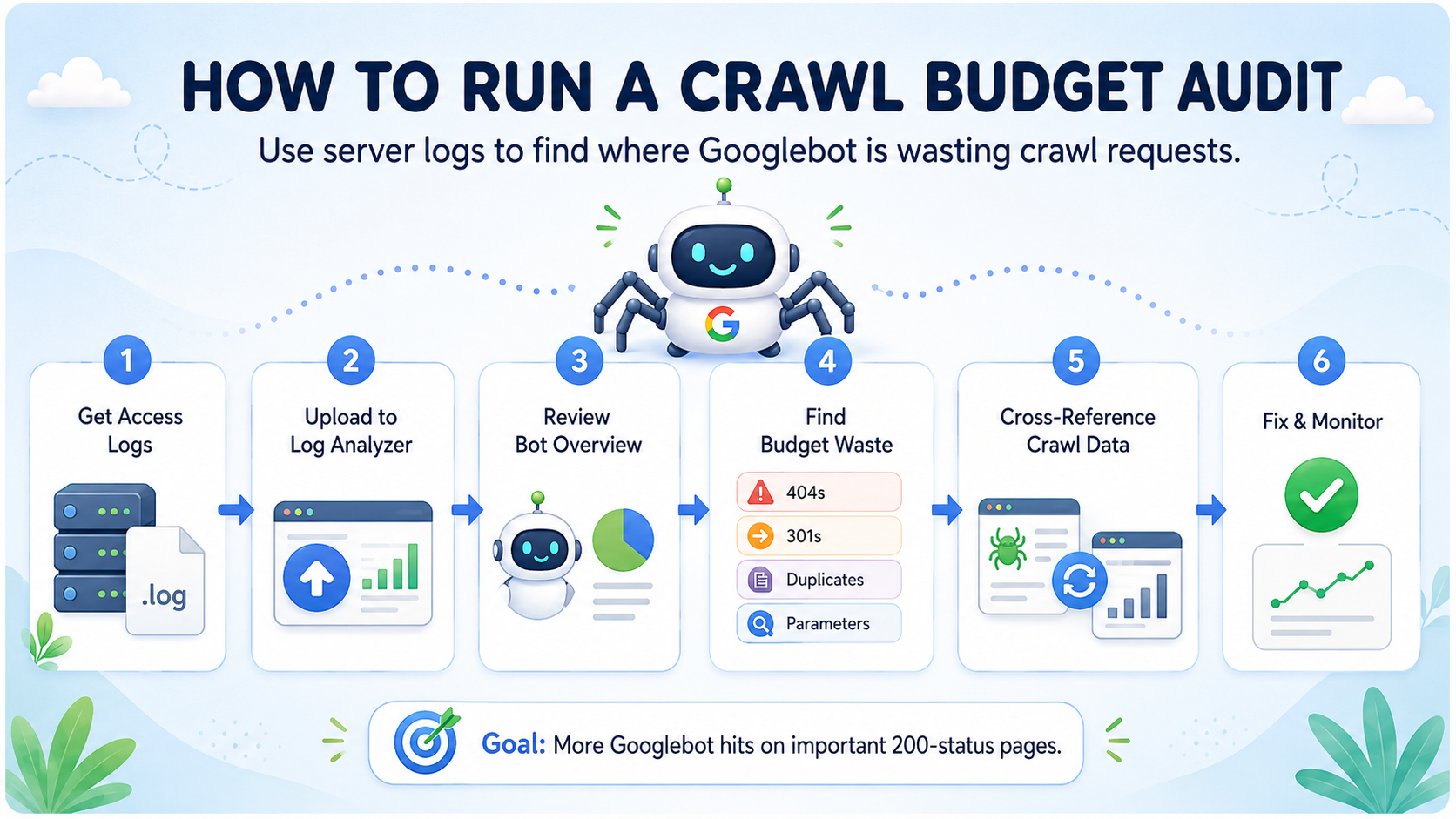
- How to Run a Complete Crawl Budget Audit
- Step 1: Get Your Access Logs
- Step 2: Upload to a Log Analyzer
- Step 3: Review Bot Overview
- Step 4: Identify Budget Waste
- Step 5: Cross-Reference with Your Crawl Data
- Step 6: Implement Fixes and Monitor
- Crawl Budget Optimization Checklist
- How Often Should You Audit?
If you manage a website with more than a few thousand pages, crawl budget waste is one of the most overlooked factors affecting your organic search performance. Google allocates a finite number of crawl requests to every domain, and if those requests are wasted on pages that return errors, redirect in circles, or serve duplicate content, your actual money pages get crawled less frequently.
The result? New content takes weeks to appear in search results. Updated pages show stale snippets. And pages you care about get de-prioritized in favor of junk URLs that bots keep rediscovering.
This guide covers exactly how to identify crawl budget waste, the seven most common causes, and the specific technical SEO fixes you can implement today. We will also walk through a complete crawl budget audit process using server log analysis.
What Is Crawl Budget?
Crawl budget is the combination of two factors Google uses to determine how many pages to crawl on your site:
Crawl rate limit - how fast Googlebot can crawl without overloading your server. This is influenced by your server response time and whether Google detects errors or slowdowns.
Crawl demand - how much Google wants to crawl your content. Popular, frequently-updated pages with strong backlink profiles get higher demand. Stale, thin, or low-authority pages get lower demand.
For small sites (under 1,000 pages), crawl budget is almost never a problem. Google can crawl your entire site in a single session. But once you hit 10,000+ pages, crawl budget becomes a real constraint that directly impacts how quickly content gets indexed. Especially with faceted navigation, parameter URLs, or user-generated content.
How to Tell If Crawl Budget Is a Problem for You
Before diving into fixes, confirm that crawl budget waste is actually affecting your site. Here are the four key symptoms:
New pages take more than 7 days to get indexed - despite being in your sitemap and linked from internal navigation. If Google is spending its crawl budget on low-value pages, it takes longer to discover and index your new content.
Google Search Console shows stale cached versions - you updated a page two weeks ago, but the search snippet still shows the old title or description. This means Googlebot has not re-crawled the page since your update.
Crawl Stats report in GSC shows high error rates - go to Settings > Crawl Stats in Google Search Console. If more than 10% of crawl requests return 404, 301, or 500 status codes, you have significant waste.
Server logs show Googlebot hitting the same dead URLs repeatedly - this is the most definitive signal. If your access logs show Googlebot requesting URLs that return 404 or redirect, those are wasted crawl slots that could be spent on your important pages.
If you see two or more of these symptoms, crawl budget optimization will have a measurable impact on your SEO performance. A fast way to sanity-check the basics is to run a quick technical SEO check before you dig into logs.
The 7 Biggest Crawl Budget Killers
1. Soft 404 Pages
A soft 404 is a page that returns an HTTP 200 status code but displays "page not found" or empty content. From the server’s perspective, everything is fine, so Googlebot keeps coming back. Unlike real 404s (which Google eventually deprioritizes), soft 404s waste crawl budget indefinitely because the server never signals that the page is gone.
Common causes:
Custom error pages that return 200 instead of 404
Search result pages with zero results
Product pages for items that are out of stock but still render a template
CMS pages with placeholder content that was never filled in
How to fix:
Audit your site for soft 404s using Google Search Console > Pages > "Soft 404" filter
Ensure your server returns proper 404 or 410 status codes for deleted or empty pages
If you need to keep the URL live (e.g., temporarily out-of-stock products), add a
noindexmeta tag to prevent Googlebot from wasting crawl budget indexing thin contentSet up monitoring so new soft 404s are caught automatically in your regular crawl audits
2. Redirect Chains and Loops
A redirect chain occurs when URL A redirects to URL B, which redirects to URL C, which redirects to URL D. Each hop in the chain consumes a separate crawl request. Googlebot follows up to 10 redirects before giving up, but every hop wastes crawl budget and dilutes PageRank.
Real-world example: After a site migration, old URLs redirect to a staging domain, which redirects to the new domain, which redirects to HTTPS. That is three hops for every single URL, tripling your crawl budget cost for those pages.
How to fix:
Run a full site crawl and filter for redirect chains longer than one hop
Update every redirect to point directly to the final destination URL
Check your
.htaccessor server config for stacked redirect rules that create chainsAfter fixing, re-crawl to verify all chains resolve in a single hop
Set up automated monitoring to catch new chains as they appear (common after CMS updates or URL changes)
3. Duplicate Content Without Canonical Tags
If the same content is accessible at multiple URLs, each version consumes crawl budget independently. Without canonical tags, Google has to crawl all variants to determine which is the "real" page. Common duplicate URL patterns include:
http://vshttps://www.vs non-www.Trailing slash (
/page/) vs no trailing slash (/page)URL parameters (
?sort=price,?page=2,?ref=email)Session IDs appended to URLs
Print-friendly versions of pages
How to fix:
Add self-referencing
<link rel="canonical" href="...">tags to every indexable pageConsolidate protocol and subdomain variants with 301 redirects (HTTP→HTTPS, www→non-www)
Handle trailing slash consistency with a server-level redirect rule
For parameter URLs you cannot redirect, use canonical tags pointing to the parameter-free version
Audit regularly, new duplicate patterns emerge whenever your CMS or site structure changes
4. Orphan Pages
Orphan pages are URLs that exist on your site (maybe in the sitemap, or discoverable through old external links) but have zero internal links pointing to them. Googlebot finds these pages, crawls them, but they exist in isolation with no contextual signals about their importance.
Why this wastes crawl budget: Googlebot discovers orphan pages through sitemaps or previously-cached link data, spends a crawl request on each one, but gets no internal linking signals about whether the page matters. These are often old blog posts, retired product pages, or test pages that were never properly decommissioned.
How to fix:
Run a crawl and compare discovered URLs against your sitemap to identify orphans
For pages that still have value: add 2-3 internal links from related, high-authority pages on your site
For pages that are no longer needed: remove from sitemap, add
noindex, or 301 redirect to a relevant alternative pageUse log file analysis to cross-reference bot-visited URLs against your crawl data, the Uncrawled Pages view shows exactly which URLs bots are wasting time on
5. Bloated XML Sitemaps
Your XML sitemap is a direct request to Google: "please crawl these URLs." If your sitemap includes non-indexable pages (noindexed, redirected, 404, or canonicalized elsewhere), you are actively directing Googlebot to waste crawl budget on pages that will never appear in search results.
Common sitemap mistakes:
Including URLs that return 301 redirects instead of the final destination
Including URLs with
noindexmeta tagsIncluding paginated URLs (
?page=2,?page=3) that canonical to page 1Never removing deleted pages from the sitemap
Auto-generating sitemaps that include every URL regardless of HTTP status or indexability
How to fix:
Audit your sitemap: every URL should return HTTP 200, be indexable, and be the canonical version of that page
Set up automated sitemap generation that filters out non-200 and noindexed URLs
Keep sitemap file sizes under 50MB and under 50,000 URLs per file (Google’s limits)
Submit your cleaned sitemap to Google Search Console and monitor the coverage report
Re-audit monthly as content is added, updated, and removed
6. Faceted Navigation and Parameter Explosion
E-commerce sites and directories are especially vulnerable to parameter explosion. A product listing page with filters for size, color, price, brand, and rating can generate thousands of URL combinations, most with identical or near-identical content.
The math is brutal: A shoe store with 5 sizes, 8 colors, 4 brands, and 3 price ranges creates 5 × 8 × 4 × 3 = 480 filter combinations per category. Multiply by 20 categories and you have 9,600 filterable URLs most showing the same products in slightly different orders. That is 9,600 pages competing for crawl budget with your actual category and product pages.
How to fix:
Use
robots.txtto block crawling of filter parameter patterns:Disallow: /*?color=Add canonical tags on filtered pages pointing to the unfiltered category page
For high-value filter combinations that have real search demand (e.g., "red running shoes"), create dedicated landing pages with unique content instead of relying on filters
Consider using AJAX-based filtering that does not change the URL for low-value filter combinations
Monitor new parameter patterns in your server logs to catch crawl budget leaks early
7. Internal Search Result Pages
If your site search generates crawlable URLs (e.g., /search?q=blue+shoes), Googlebot will discover and crawl them mostly extensively. Internal search pages typically have thin, dynamic content and no SEO value, but they can consume hundreds of crawl requests per day on busy sites.
How to fix:
Block search result URLs in
robots.txt:Disallow: /searchAdd
noindexto search result pages as a secondary defense layerIf search URLs are already indexed, add the
robots.txtrule and request removal through Google Search Console for high-priority casesEnsure internal links never point to search result URLs (some CMS themes do this accidentally in "related content" widgets)
How to Run a Complete Crawl Budget Audit
The most reliable way to understand your crawl budget allocation is server log analysis. If you want this inside a broader SEO workflow, CrawlTide also includes log-file-driven analysis alongside audits and issue detection. Your web server logs record every request from every bot, giving you ground truth about what Googlebot actually crawls. Not what you think it crawls based on GSC data alone.
Step 1: Get Your Access Logs
Download your server access logs for the last 7-30 days. Supported formats include Apache Combined, Nginx, and CloudFront. Most hosting providers give you access to raw logs through cPanel, Plesk, or your hosting dashboard. If you use a CDN like Cloudflare, you may need to enable logging separately.
Step 2: Upload to a Log Analyzer
Use a log file analysis tool to parse your logs. The system automatically identifies all bot traffic and categorizes requests by bot type (search engines like Googlebot and Bingbot, SEO tools like AhrefsBot, AI crawlers like GPTBot, social bots, and monitoring services).
Step 3: Review Bot Overview
Check the Bot Overview to see which bots are crawling your site and how many requests each one makes. Focus on Googlebot what percentage of its requests go to 200-status pages vs errors and redirects? A healthy site should have 90%+ of Googlebot requests hitting 200-status pages.
Step 4: Identify Budget Waste
The Budget Waste analysis shows you exactly which URLs are consuming crawl budget without returning useful content. Look for:
404 URLs that bots keep hitting - these need 410 status codes or redirects to relevant pages
500 error URLs - these indicate server-side issues that need immediate fixing
301 redirect URLs - internal links and sitemaps should be updated to point directly to the destination, eliminating the redirect hop
Parameter URLs with high bot hit counts - these likely need robots.txt blocking or canonical tags
Step 5: Cross-Reference with Your Crawl Data
Compare bot-visited URLs against your site crawl data. Pages that bots visit but are not in your crawl may be orphan pages, dynamically-generated URLs, or legacy content that needs cleanup. This cross-reference is one of the most valuable insights from log analysis. It shows you exactly what bots are doing that your regular site audit misses.
Step 6: Implement Fixes and Monitor
After implementing the fixes identified in your audit, monitor these metrics over 2-4 weeks to measure impact:
GSC Crawl Stats - total crawl requests per day should shift toward your important pages
Index Coverage - fewer excluded pages, more valid indexed pages in the coverage report
Time to Index - new content should appear in search results within 1-3 days instead of 1-2 weeks
Server Log Bot Distribution - higher percentage of Googlebot requests hitting 200-status pages, lower percentage hitting errors and redirects
Crawl Budget Optimization Checklist
Use this checklist after every audit to ensure you have covered all the major optimization opportunities:
All deleted content returns 404 or 410 status codes (no soft 404s)
All redirects resolve in a single hop (no chains longer than one redirect)
Every indexable page has a self-referencing canonical tag
Protocol and subdomain variants redirect properly (HTTP→HTTPS, www→non-www)
XML sitemap contains only 200-status, indexable, canonical pages
Faceted navigation parameters are blocked in robots.txt or canonicalized
Internal search result pages are blocked in robots.txt and noindexed
Orphan pages are either properly linked or removed/redirected
Server response times are under 500ms for Googlebot requests
No URL parameters or dynamic patterns create infinite crawl traps
How Often Should You Audit?
Crawl budget optimization is not a one-time project. As your site grows, content gets updated, pages get deleted, and new URL patterns emerge, crawl budget waste accumulates. Here is the recommended audit frequency based on site size:
Large sites (50,000+ pages) - monthly log analysis with quarterly comprehensive audit
Medium sites (5,000-50,000 pages) - monthly comprehensive audit
Small sites (under 5,000 pages) - quarterly audit (crawl budget is less likely to be a bottleneck, but still worth monitoring)
The key is making crawl budget monitoring a routine part of your technical SEO workflow rather than a reactive project you only tackle when indexation problems become visible. Automated crawl audits that flag budget waste issues in every scan help catch problems before they compound, and regular log file analysis provides the ground truth that validates your optimization efforts are actually working. “If you want to turn crawl issues into a repeatable process, you can see CrawlTide’s plans.
CrawlTide Team
CrawlTide is an AI-powered SEO platform that helps teams find and fix technical SEO issues, track keyword rankings, and optimize search performance.
Suggested Reading

Free SEO Tools That Stay Free: A Stack Built by Job
A free SEO stack sorted by job, with what each tool asks of you (account, billing details, page caps), including the new free AI search reports in Google Search Console and Bing Webmaster Tools.
8 min read
Should You Add an llms.txt File? What It Does and When It Pays Off
llms.txt is an emerging file that maps your best pages for AI engines. What it does, who actually honors it today, and how to write one in an hour.
7 min read
Schema Markup Examples That Still Earn Rich Results in 2026
Google quietly retired HowTo and FAQ rich results, but most schema guides still recommend them. Here is which markup still renders, by page type, and how to check it before it ships.
9 min read